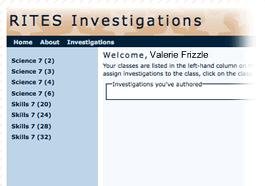
 The RITES Investigations Portal
RITES Teachers
This page is designed to help RITES teachers use the computer-based Investigations created by the RITES project teams.
Your main entry into RITES is a web-based “portal” that can be accessed with a browser. The portal allows you to select which RITES Investigations you want to use with your class and gives you and your students access to the Investigations.
The RITES Investigations portal is pre-loaded with each RITES teacher's classes and students; there is no need for you to enter or register your students.
Before you begin, you may want to review the available Investigations.
Getting started
To use RITES in your class, follow these steps.
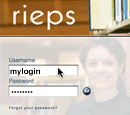
The RIEPS login screen
1. Log in to your RIEPS (Rhode Island Educational Portfolio System) account, at the RIEPS home page. RIEPS is administered by RINET; If you are having trouble logging in to RIEPS, or do not have a RIEPS account, contact RITES Teacher Help.
2. The first time you log in, you will need to add the "RITES Investigations Tool" to each of your classes. Watch the step-by-step screencast on adding the "RITES Investigations Tool" or download the PDF file version.
3. Assign Investigations to classes. This makes it available to your students when they sign in to RIEPS. Watch the step-by-step screencast that shows you how.
4. Test the Investigations you will use -- on the computer(s) you will use -- in the classroom you will use.
A note regarding browsers: RITES Investigations are currently best run in Firefox. Because of incomplete work from Microsoft, RITES can be incorrectly rendered in Internet Explorer.  Safari, which comes built-in on Macs, is also a good choice for RITES.
- This is a critical step, because varying internet connection bandwidth and different computers at each school or even in each room can make or break a computer-based activity.
- Before the first time you teach with RITES, run an Investigation on each computer that you or the students will use.
- Use the "Run" link associated with each RITES Investigation to launch the Investigation.
- If you have difficulty in running a RITES Investigation, contact RITES Teacher Help.
Tips for getting up and running
- In the portal, use the Pop-out link (see image below). This link opens the RITES portal in a new window, making it easier to navigate, assign Investigations, and use all aspects of the portal.

- To check that RITES is saving your student's data as it should, ask a student to log in through RIEPS, run an investigation, answer one question, close the Investigation and relaunch it. You should then see that the student's answer is still present.
- Using probes to collect data? The RITES default interface for probes is the Vernier Go!Link. Click to see how to change to a different probe interface.
Changing to a different probe interface.
Note that RITES currently supports Vernier across all platforms, and the newer Pasco PasPort USBLinks (2100A), as well as the SPARK, Xplorer GLX, and PowerLink on Windows. For other vendors, such as Data Harvest and TI, please consult with RITES Teacher Help.
The probe interface is a preference setting in the RITES portal. So, after logging in to REIPES and going to the portal, open your Preferences as shown here and make a different selection:

If you are having difficulty
Here are some diagnostic tests you can carry out to determine whether a computer is correctly configured to run RITES Investigations, and instructions to correct the configurations. If you are not technically inclined, these tests may be more suitable for the IT staff or Technical Director for your school to perform.
1. Check whether your computer has the current Java software installed. Most computers come with Java installed, however, occasional updates are required. Click to view step-by-step instructions for checking whether the Java software on your computer is ready to run RITES Investigations.
Step-by-step instructions for checking the Java software on your computer.
1. Download Concord Consortium's Java Checker.
2. Opening the downloaded file (called a jnlp file) will run a test of your computer's Java Web Start software, which is required for RIYTES Investigations to run.
3. If the test is successful you will see the following result, and you can go on to the next test.

4. If the Java test is not successful, download the free Java software and follow the directions provided to install it. It is quick and easy to install on any computer.
2. Check whether your browser is ready to run RITES activities. Select your browser to view the step-by-step instructions:
Step-by-step instructions for checking Firefox a Windows Computer
1. Confirm that Java and javascript are enabled. In Firefox’s Tools menu, go to the “Content” tab. Both items should be checked:

2. Confirm that cookies are enabled. In Firefox’s Tools menu, now go to the “Privacy” tab. The drop-down menu should be set to “Remember history”:

If you need to use custom settings, simply make sure that you can accept cookies, as selected in the last two items in this picture:

Step-by-step instructions for checking Firefox on a Mac
1. Confirm that Java and javascript are enabled. In Firefox’s Preferences and go to the “Content” tab. Both items should be checked:

2. Confirm that cookies are enabled. In Firefox’s Preferences again, now go to the “Privacy” tab. The drop-down menu should be set to “Remember history”:

If you need to use custom settings, simply make sure that you can accept cookies, as selected in the last two items in this picture:

Step-by-step instructions for checking Safari on a Mac
1. Confirm that Java and javascript are enabled. In Safari’s Preferences and go to the “Privacy” tab. Both items should be checked:

2. Confirm that cookies are enabled. In that same window and tab seen above, the "Accept cookies" field should be set to “Always”.
Step-by-step instructions for checking Internet Explorer on Windows
(These instructions are for Internet Explorer (IE) 6 on Windows. For IE 7 users, the instructions are the same though the windows will appear slightly different. Microsoft has stopped supporting IE on Macs, so it is not an option for RITES.)1. Confirm that Java and javascript are enabled. In IE’s Preferences and go to the “Advanced” tab. Select your most recent version of “Java”:

2. Confirm that cookies are enabled. Go to IE’s Tools menu and select Internet Options

Once this opens, go to the “Privacy” tab. The slider should be set to “Accept All Cookies”:

3. Try the Investigation again. If both the Java software is up to date and the browser you are using is configured according to the instructions, but you are still having trouble, contact RITES Teacher Help.